MacBook Air Diary-Day 13: Installing 10.5.2

Summary: I generally wait at least 72 hours before installing any operating system updates from Apple but yesterday's announcement of 10.5.
I generally wait at least 72 hours before installing any operating system updates from Apple but yesterday's announcement of 10.5.2 made me throw caution to the wind. I figured that I had a solid backup (as Apple recommends) and I wanted to see if the new update from Cupertino would play nice with the MacBook Air.
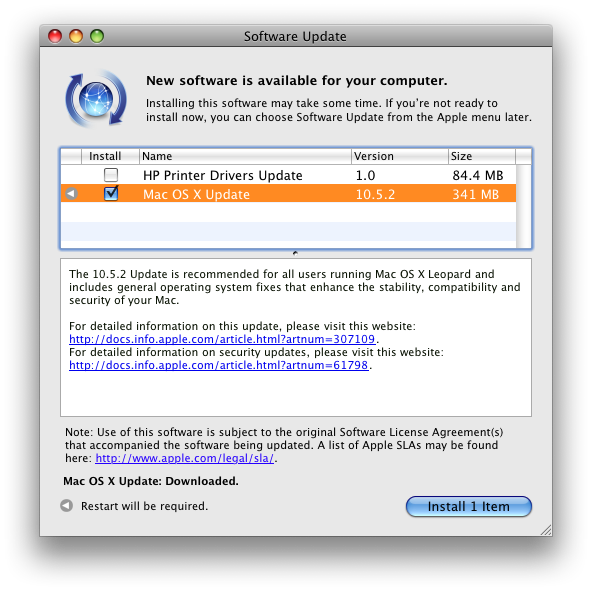
- It is recommended that you back up your system prior to installing any updates.
- The installation process should not be interrupted, even if the progress bar remains unchanged for several minutes. If a power outage or other interruption occurs during installation, use the standalone installer (see below) from Apple Support Downloads to update.
- You may experience unexpected results if you have third-party system software modifications installed, or if you've modified the operating system through other means. (This does not apply to normal application software installation.)
- If issues occur during installation--for example, if Software Update quits unexpectedly--please see this article.

Be patient. The 10.5.2 update took the better part of an hour to install on my MacBook Air. Keep the AC adapter plugged in and don't panic if there are long periods of time where nothing seems to be happening. Don't interrupt the procedure for any reason (for example by force quitting or powering down) as doing so can render your drive useless and lead to data loss.

Advice for the impatient: After you've clicked Ok and Agree buttons the requisite amount of times, go grab a coffee, walk the dog or use one of your other Macs for a while. Nothing is worse than watching grass grow.

Ok, guess I'd better install that one too...

After the jump, some 10.5.2 fixes and a poll...
Here are some items that I cherry picked from the list of fixes and features in 10.5.2. The number after the feature is the number of fixes. This is only a subset.
- Active Directory - 1
- AirPort - 3
- Back to my Mac - 1 - Adds support for more third-party routers, as detailed in this article.
- Dashboard - 2
- Dock - 2 - Updates Stacks with a List view option, a Folder view option, and an updated background for Grid view.
- Desktop - 2 - Addresses legibility issues with the menu bar with an option to turn off transparency in Desktop & Screen Saver preferences. - Adjusts menus to be slightly-less translucent overall.
- iCal - 4 - Improves iCal so that it accurately reflects responses to recurring meetings.
- iChat - 8 - Addresses an issue with simultaneously-logged in accounts in which iChat sounds generated from one account might be heard in another account.
- iSync - 1 - Adds support for Samsung D600E and D900i phones.
- Finder - 8 - Addresses an issue in which Finder could unexpectedly quit when displaying folder contents in Column view.
- Mail - 15 - Addresses an issue with Message menu's Mark > As Read choice.
- Networking - 1 - Addresses a hanging issue that may occur when connecting to an AFP network volume.
- Parental Controls - 6 - Improves stability when opening the Parental Controls System Preferences pane.
- Preview - 3 - Improves stability when scrolling through a PDF document.
- Printing - 5 - Adds support for certain printers connected to the USB port of an AirPort Extreme or AirPort Express base station.
- RAW Image - 1 - Adds RAW image support for several cameras, as detailed in this article.
- Safari - 1 - Addresses issues with Safari reliably resolving certain domains.
- Login and Setup Assistant - 2 - Addresses an issue in which Setup Assistant could unexpectedly appear each time Mac OS X 10.5 starts up.
- System - 2 - The computer will now shut down if an automatic disk repair does not succeed during startup.
- Time Machine - 5 - Adds a menu bar option for accessing Time Machine features (the menu extra can be enabled in Time Machine preferences).
- Other - 4
What has your experience been with the 10.5.2 update?
[poll id=97]
Kick off your day with ZDNet's daily email newsletter. It's the freshest tech news and opinion, served hot. Get it.
Talkback
10.5.2 on MBA
did permission repair, that took it down to 1 min 30 sec. next boot up was 1 min 10 sec. 3rd boot up was 55 sec. another round of permission repair did not change it. final boot up time 55 sec.
How is the average user supposed to know this?
Does the update say anything like:
[i]if you experience increased boot times, please click "this" button to repair your permissions[/i] ?
I'm glad that you know about this but I suspect a lot of people wouldn't think: hmm, my boot times are long, maybe I should repair my permissions?
Come to think of it, why do your permissions get so corrupted? I've never had corrupted permissions on any of my Linux or Windows boxes. Is this due to some deficiency in HFS+? Odd.
how is the average user supposed to know anything?
Thank you!
Seems kind of silly then when Mac people respond to postings about Windows solutions with: [i]how is the average user supposed to know that?[/i]
I just love it when a good spoof post gets the exact response I was eliciting. :)
well, i never respond that way.
Come to think of it..
valid opinion, one way or the other?
Sounds like this is FAR better than Vista SP1!!
[i]The Mac OS 10.5.2 Update weighs in at a hefty 341MB and is available via Software Update.
...
The 10.5.2 update took the better part of an hour to install
...
You have to ???restart and install??? and your Mac will restart between one and two more times before the process completes.
...
After successfully installing the 10.5.2 update on my MBA I ran Software Update again (just an old habit) and to my surprise, there was an almost 50GB ???Leopard Graphics Update??? waiting to be installed.[/i]
Hmm, wait a second, why it doesn't seem to be that different after all!! Why then were Mac people all over the Vista SP1 stories talking about how multi hundred MB patches, hour long upgrades, and multiple reboots were such a bad thing and that we should all switch to Macs? :)
No you should stay with Windows my friend...:P
They're your people.
I guess the same reason why you show up on every Mac related story with your own taunting and trolling. You would be the man to ask.
I've answered this question a million times
Well at least your convenient.
However, It's much easy for us because one need not bring up the trolls encountered in blogs hither and yon, because your always right here in person. :)
If you have to tell people that you're a spoof...
What [b]is[/b] obvious is that you're a troll, and like the attention you get by acting
like a fool.
not the same for everyone...
minutes, but the separate restart was for a driver update, noting to do with the OS
update.. that was not available before 10.5.2 was done (and was not required to get to
10.5.2). I'm sure you like to twist anything to look bad for Apple, you always do... but
your really reaching far with this one... oh hey wait you always do... never mind.
I'll second that
Selective?
My Experience.
back up and it was plain sailing. I wonder if the time differences that people are
experiencing have something to do with internet speed.
BTW, I downloaded the combo install from the Apple site instead of using the
software update facility. I'm not sure if this made a difference to the time or not. Now,
before someone says "how will an average user know how to do this?" I am an
average everyday user. I read things.
Average user?
How should we define "average", I wonder? My definition of "average" is "button pusher". That is, someone who has been sold the lie that a computer is an appliance like a toaster or TV, and therefore needs little, in any, maintenance. "Average" users, by my definition, never "read" anything about their computer, at least not deliberately. So, I was say that you are NOT an average user, but an "intermediate" user. I would agree with the initial postulation that "average" users wouldn't have any idea any repairing permissions, and simply do the updates (sometimes!) and accept whatever condition the Mac ends up in (in terms of speed and stability). The same goes for "average" Windows users.
Heck, lets face it people: MOST computer users are "average" - they just want to press a few buttons, wiggle their mouse about the screen, play a few games (solitaire, anyone... :)), send e-mails, then go do something more meaningful (in their view) that has nothing to do with computers. It's only those of us who use computers at "work", then come home and "tinker" with our computer for a few hours afterwards (and not be "sick of the sight of a computer") that are NOT average. WE are the ones who know about permission repairing, hard drive defrags, having enough RAM to get the best out of our computer etc, not the "average" users.
Anyway, enough said.
And How Lagre Is Your Hard Drive???
I don't think it works that way....
over all system. Does a patch not replce faulty or buggy software with better but does
not simply add to it?
Pagan jim
"I don't think it works that way.... "
The bits & bytes have to go somewhere. Maybe not all of them...but over time the hard drive WILL get filled up with updates.
I just updated my G4 iMac with 140MB of downloads, and before the download & install Finder was showing 91.7GB of space...after the install it shows 91.5.
Sorry sport...it DOES work that way.