A power user's guide to the Windows 8 Consumer Preview

The more I use Windows 8, the more I like it.
It’s still a beta, of course, but it’s been fast and reliable enough for me to use day in and day out.
After more than a month of daily use, the new Start and search screens have become comfortable. Yes, the new design is a big change, one that takes some time (and a bit of unlearning) to adapt to. And yes, there are minor annoyances. The shortcut in the lower left corner of the display that leads to the Start screen, for example, desperately needs some fine-tuning. I have no doubt that Microsoft has heard the intense feedback and will make the necessary adjustments in the final release.
In this post, and the accompanying gallery. I want to share some of the little shortcuts, surprises, and secrets that only reveal themselves when you roll up your sleeves and use the new OS every day. These are things you might not discover on your own.
Gallery: 12 shortcuts and secrets for the Windows 8 Consumer Preview
I’ve come up with a dozen items, divided into four categories.
User accounts
One of the biggest changes in Windows 8 is the addition of a second account type, as a complement to the traditional local user account.If you choose a Microsoft account instead of a local account, you use an email address as your user name. That unlocks the option to sync your settings between PCs—handy if you have Windows 8 running on multiple devices.
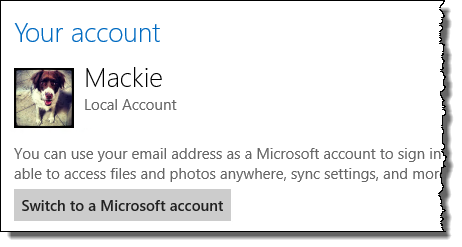
Regardless of which account type you choose, you can add a four-digit numeric PIN to unlock your PC. This doesn’t replace the strong password associated with your user account. It just makes unlocking your PC more convenient. Using a PIN makes it easier for someone who has physical access to a PC to access its contents, so this option is best reserved for home PCs, where physical security isn’t an issue.
Power-user conveniences
The average user rarely goes past the desktop. Power users, though, know where all the little configuration utilities are available.One extremely useful change in Windows 8 is the addition of a Startup tab in Task Manager. You no longer need to dig around in the registry or use Msconfig to undo the changes that ill-mannered programs make when you install them.
The quintessential power user’s tool is the Remote Desktop client, which you can use to connect to another Windows desktop or server. In the Windows 8 Consumer Preview, there’s an extremely limited Metro style Remote Desktop client, but the “classic” Remote Desktop connection client is still there. I explain how to find it.
And hardware geeks will appreciate one small addition to the dialog box for an installed device, which lists the driver history for that device.
Multiple monitors
If you sit in front of a desktop for hours every working day, adding a second (or third) monitor can dramatically improve your productivity.The big change to the Windows 8 Start and search screens means equally big changes to the way a multi-monitor setup works. (The new Start screen, for example, shows up only on one display, while desktop apps get to use both.) Explaining how multi-monitor works is worth a post on its own. In this gallery, I point out two long-overdue and very welcome small changes.
First, you can customize how how the taskbar works in multi-monitor setups. By default, the taskbar is duplicated on both monitors. For my configuration I changed the settings so that the secondary monitor only shows taskbar buttons for programs actually running on that display.
And second, you can finally set separate custom backgrounds for each monitor, although the option isn’t easy to find.
Backup and recovery
Some of the biggest and potentially most confusing changes in Windows 8 involve backup and recovery options.Every beta tester knows the value of a clean install. You also know what a PITA the process can be. In Windows 8, you can use the Refresh your PC option to do a clean install without wiping out data files and user settings. Use this in conjunction with the option to create a custom refresh point to turn a process that used to take hours into one that literally takes 20 minutes or less.
An essential part of your Windows 8 toolkit should be a Recovery drive—a bootable USB flash drive that you can use to repair a broken installation or restore a backup. This option replaces the older disk-based option (although you can still use a CD or DVD if you need it).
And finally, I uncovered the answer to a question that I’ve been asked many times. What happened to the option to save a system image backup? It’s still there, although it’s well hidden and confusingly labeled. Fortunately, the option to restore your system from a saved image is a little easier to find.
For the details about each of these tips, see the accompanying gallery: 12 shortcuts and secrets for the Windows 8 Consumer Preview
Related:
- Windows 8 Consumer Preview: a fresh start for Microsoft
- Getting started with the Windows 8 Consumer Preview
- Shortcuts and surprises in the Windows 8 Consumer Preview
- The Metro hater's guide to customizing Windows 8 Consumer Preview (post)
- The Metro hater's guide to customizing Windows 8 Consumer Preview (gallery)