Hands on with Microsoft's Surface RT: Can it hit the sweet spot?

On a busy Sunday evening a few weeks ago, I was sitting in Terminal 4 of the Phoenix Sky Harbor airport waiting for a connecting flight. The guy sitting next to me was clearly an experienced business traveler.
I watched out of the corner of my eye as he pulled an iPad from his briefcase, checked some football scores, and played Words with Friends for a few minutes.
Then he put the iPad away and pulled out a well-worn Dell notebook (I swear it had duct tape on one corner). He waited (more patiently than I would have) for Windows XP to load, and then he worked on an Excel spreadsheet for 30 minutes until our flight was called.
That guy. The one who has to carry around two devices because neither one by itself can do everything that needs to be done. That’s who Microsoft’s new Surface with Windows RT was designed for.
After using a Surface RT for the past week, I can explain it in one sentence:
It’s more than an iPad, and less than a PC.
The Windows RT-powered Surface will not replace your desktop PC or your full-strength notebook. It is, instead, an ideal companion device for a Windows PC, with great mobility. It is powerful enough that it alone can handle most work and play duties, even on an extended business trip or vacation.
The hardware itself is drop-dead gorgeous, and the build quality is exceptional. This thing feels good in the hand, and the kickstand works exactly as advertised: propping the device at a 22-degree angle for watching a movie or working with an Office document. It is very thin (a millimeter or two thinner than the third-generation iPad) and very light (a fraction of an ounce heavier than that same iPad, despite having a much larger screen).
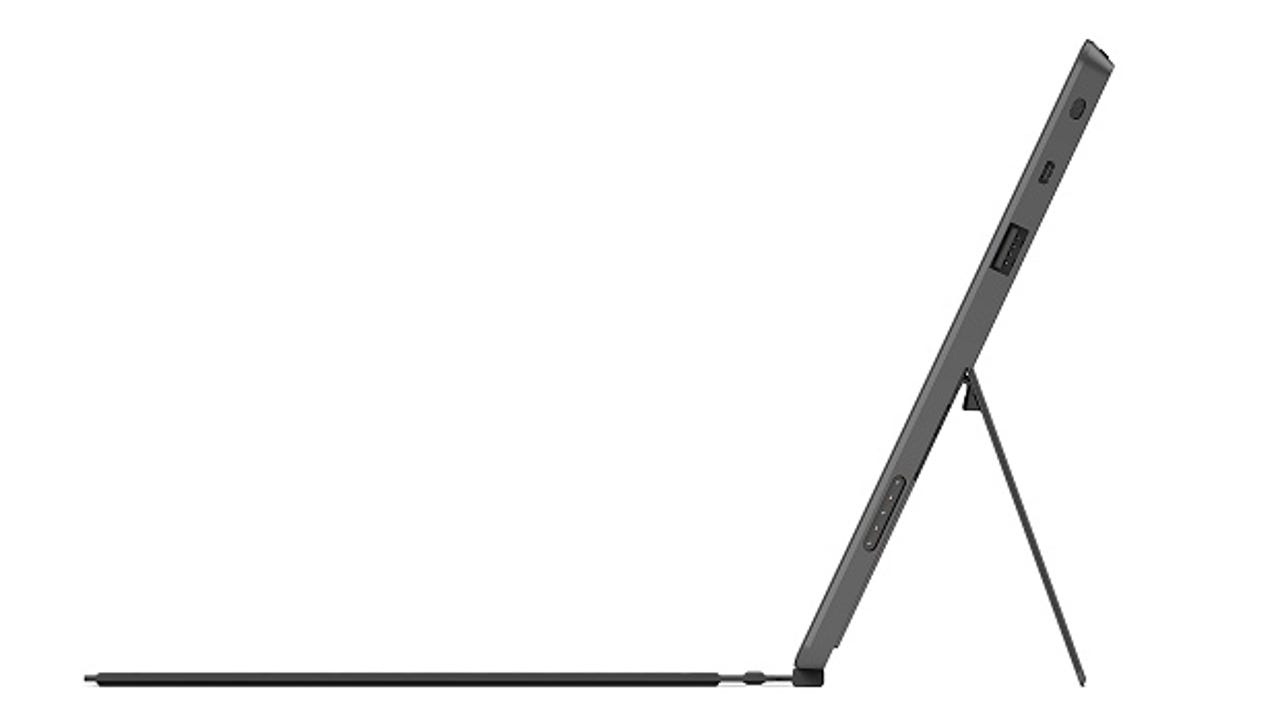
Closing the Touch Cover turns the device off, and the back of the cover has just the right amount of gripping quality so that you can carry this device comfortably, like a book.
“More than an iPad” doesn’t mean “better than an iPad.” Making that final judgment has a lot to do with what you want out of a portable device and whether you already have an investment in or a preference for Apple’s enormous app ecosystem.
But, objectively, the Surface with Windows RT does five things an iPad simply can’t:
- It allows connections to external devices. You can plug a micro-SD card into the slot hidden beneath the kickstand and instantly increase available storage. My review unit came with 64GB of internal storage and a 64GB SD card, giving it a very impressive 113.5GB of storage. The availability of a USB 2.0 slot means you can connect USB flash drives for easy file transfer, or connect to a printer to produce a hard copy of a document without having to jump through hoops.
- It supports Adobe Flash in Internet Explorer. Yes, Flash takes some much-justified abuse for its performance and security woes, but it also powers a lot of web-based applications that people depend on, especially in educational segments.
- It has a keyboard (and a touchpad!) Technically, theTouch Cover and Type Cover are optional accessories for the Surface RT. But I can’t imagine using this device without it. Yes, you can equip an iPad with a third-party keyboard to make data input faster, but the Surface covers have multiple advantages: they’re integrated into the cover, so you don’t have to carry an extra device, they work on a direct connection instead of requiring finicky Bluetooth and an external power source, and they include a touchpad, which lets you use Office apps and the Windows RT desktop without having to mess with the touchscreen. (The touchpad, by the way, scrolls in the opposite direction from most existing PC touchpads when you use the two-finger scroll gesture, a feature it shares with Macs running OS X Mountain Lion.)
- Microsoft Office is included. Windows RT includes four apps from Office 2013, all of which were updated this week to the final release. For creating and editing documents, Word, Excel, PowerPoint, and OneNote work exactly as they do on a Windows PC. Trying to open those documents on an iPad offers only a vague approximation of the formatting, with no editing capabilities unless you pay for a separate app.
- Multiple users can share a Surface. An iPad is an intensely personal device, designed for a single user. By contrast, Windows RT has full support for multiple Windows accounts. And because it synchronizes settings, bookmarks, email and calendar items, and saved passwords with Windows 8, those individual accounts are personal and private.
In fact, if you switch from a PC running Windows 8 to a Surface RT, you might not notice any difference right away. (Except, perhaps for the fact that the device never gets hot, thanks to a low-powered Tegra ARM processor whose design allows it to run cooler than an Intel CPU.)
But you will, sooner or later, discover why this Windows RT-powered Surface is less than a PC. It is missing these key features:
- You cannot install desktop apps. If you download a program written for the Windows desktop and try to run it, you will be stopped in your tracks, with an error message that tells you, politely, to go look for an equivalent app in the Windows Store. If you need to edit a video with your favorite desktop tool, or if you want to run through your finances with Quicken for Windows, you are out of luck.
- That copy of Office isn't complete. If you want to check your email, you'll need to use a browser or the built-in Mail app, because Outlook isn't included. You'll also need a business license to use the Office apps for commercial purposes. In addition, some advanced features (including the ability to run macros) are not supported. For a full list of the differences between Office 2013 on Windows RT and on Windows 8, see this page.
- You cannot install an alternative browser. If you’re addicted to Firefox extensions, or if you’ve built a completely tweaked Chrome experience for Gmail and Google Apps, you are out of luck. Internet Explorer 10 is the only browser option available to you. And you can’t add any browser plugins except those included with the base installation. So no password manager, no third-party ad blocker, and (ironically) no Silverlight.
- There’s no SkyDrive synchronization. This one surprised me when I first discovered it. If you want to access files stored in your SkyDrive account, you’ll need to do so via a web browser or the built-in Windows 8 app, using a live Internet connection. The Windows desktop app that syncs files between a local drive and SkyDrive isn’t available for Windows RT. (You can open an Office document from SkyDrive, disconnect from the Internet, and continue editing it offline. The Office Upload Center will upload your changes later, when you reconnect.)
Some of those shortcomings would be dealbreakers if you were depending on this device to be your only PC. But if it’s your go-to mobile device, you can tolerate some of those shortcomings in exchange for greatly improved battery life and the ability to carry a single device instead of two.
A week’s usage is barely long enough to make preliminary judgments about performance, but here are some impressions I can share.
Battery life
I didn’t perform any formal assessments, but over the course of the week I typically charged the Surface in the morning and used it intermittently all day long. The battery never dropped below 20%.
At one point, I set the Surface to play a two-hour-long movie, and followed that with an hour’s worth of streaming music playback from Microsoft’s new Xbox Music service while I edited a Word document. During that three-hour stretch, the battery level dropped by roughly a quarter, from 63% to 39%. That performance suggests that it’s reasonable to expect 10-12 hours of steady battery life from this little device.
In addition, I found that the included power supply delivered as promised: charging the battery from nearly 0 to 50% in about an hour, and completing a full charge in less than two hours.
Display quality
Microsoft’s engineers say they deliberately chose not to get swept up in the pixel wars, concentrating instead on precisely manufacturing the custom display to give it excellent contrast. The resulting display, despit its nominally low 1366x768 resolution, is gorgeous, especially in environments where there’s a lot of glare. I gave the Surface RT to a half-dozen friends and visitors, and each one commented on how bright and crisp the display was.
In a side-by-side comparison with Apple’s third-generation iPad, using the New York Times home page as a reference, both my wife and I found text on Apple’s Retina display slightly crisper and sharper. For image quality, though, the two displays were practically indistinguishable.
Keyboard feel
Microsoft’s two keyboard options double as covers that switch the device into standby mode when closed. The TouchCover keyboard is impossibly thin, with keys etched on and raised ever so slightly so to accommodate a touch typist. The TypeCover keyboard is a few millimeters thicker, with discrete keys that have a distinct travel.
The layout of the two keyboards is identical, with the top row (where function keys normally reside) given over to volume and media playback controls, four special keys for the Windows 8 charms, and the Home/End/PgUp/PgDown group.
On the Type Cover, those keys are also identified as function keys (F1 through F12), which are activated through an Fn key on the bottom row. On the Touch Cover, the F-key labels are missing, but the Fn key still unlocks their functionality.
The experience of typing on the Touch Cover keyboard is initially odd. It reacts to firm pressure and ignores light movements, which meant that I never accidentally found myself typing something by dragging a hand across the keyboard surface.
I quickly adapted to the feel of the Touch Keyboard and found myself typing at full speed within a day. (Full disclosure: I am a terrible typist. Mavis Beacon would avert her eyes if she saw the way I torture a keyboard.) The Type Cover keyboard has a more familiar feeling and is likely to appeal more to someone who plans to use the device for extensive data input.
The small touchpad with tiny left and right buttons beneath it also has a short learning curve but works well. The magnetic hinge (which includes the electrical connection for the keyboard) is extremely robust. When you flip either cover behind the surface and use it in tablet mode, the keyboard switches off completely. In that position you can feel the keys on the Type Cover, whereas the Touch Cover feels more like a cover.
And to answer an oft-asked question: Yes, the kickstand/keyboard combination works extremely well when balanced in one’s lap.
Digital media and apps
The Surface RT includes Microsoft’s new Xbox Music streaming service, which I used to play and download several dozen albums. The service worked flawlessly, although I noticed some brief audio glitching when the screen blanked as a power-saving measure.
Playback of video content was smooth and glitch-free. The included Videos app includes a Play to Xbox 360 option that I didn’t test. Microsoft updated the Xbox SmartGlass app as I was wrapping up my tests, and I look forward to spending more time with it later.
Another last-minute addition to the app lineup was the native Skype app. I was able to briefly use a preview version of the final app (which will be available in the Windows Store on launch day). Picture quality was excellent with the front-facing 720p camera, and the quality of the Wi-Fi connection was perfect.
Conclusion
For a first-generation product, the Surface with Windows RT is astonishingly polished. It’s not a replacement for a full-strength PC, but as a companion device that offers light weight, excellent entertainment options, and the ability to use full-featured Office apps, it’s irresistible.
I also expect the ecosystem around the Surface, notably productivity apps, to improve by leaps and bounds in the next year or so. This is a product that will get better with age.
Enthusiastically recommended.
iPad (third-generation) versus Surface RT, by the numbers
Weight:
iPad (no cover): 1 pound, 7-5/8 ounces
Surface RT (no cover): 1 pound, 8 ounces
iPad with Smart Cover: 1 pound, 12-3/4 ounces
Surface RT with Touch Cover: 1 pound, 15-5/8 ounces
Screen size (diagonal):
iPad: 9.7 inches
Surface RT: 10.6 inches
Cost of entry-level device:
iPad (16GB): $499
Pages/Numbers/Keynote: $30
SmartCover: $49
Bluetooth Keyboard: $69-99
Total iPad cost: $647-677
Surface RT (32GB) with Touch Cover and Office 2013 RT: $599
Surface RT (32GB) with Type Cover and Office 2013 RT: $628