Getting started with the Windows 8 Consumer Preview

Microsoft officially unveiled the Consumer Preview of Windows 8 this week. Judging by the response to my poll earlier this year, a lot of the readers of this blog are planning to put this beta release through its paces.
Before you do that, it pays to do some homework. In this post, I’ve assembled answers to some questions you’re likely to have.
As with any beta software release, this OS isn’t for civilians. Microsoft’s own FAQ includes this warning:
Windows 8 Consumer Preview is stable and has been thoroughly tested, but it’s not the finished product. Your PC could crash and you could lose important files. You should back up your data and you shouldn't test Windows 8 Consumer Preview on your primary home or business PC.
That’s important advice. By all means, the first thing you should do before even thinking about tinkering with the Windows 8 Consumer Preview is a full backup of your test machine. If it’s running Windows 7, you can do that easily by going to the Backup and Restore option in Control Panel and creating a system image on an external hard drive.
Let me say that again: Back up first.
Seriously. It takes minutes to snap a system image, and having that image and a system repair disc makes it quick and easy to get back to your previous working configuration if you find that Windows 8 doesn't work well on your hardware (or if you just don't like it).
See also
- Windows 8 Consumer Preview: a fresh start for Microsoft
- Windows 8 in detail (screenshot gallery)
- A closer look at the 18 built in Metro style apps (screenshot gallery)
- Shortcuts and surprises in the Windows 8 Consumer Preview
With that crucial business out of the way, it’s on to the FAQ…
Will my hardware run the Windows 8 Consumer Preview?
If it runs Windows 7, the answer is yes. The official requirements are in the Windows 8 Consumer Preview: Frequently Asked Questions.
The biggest gotcha to watch out for is system resolution. If you’re installing Windows 8 Consumer Preview on an older portable PC, especially a netbook, or in a virtual machine, make sure your screen resolution is up to the challenge. These are the key numbers to watch out for:
- Minimum resolution: 1024 x 768 Although you can install the Consumer Preview on a system with a lower resolution, it will not run Metro style apps.
- Minimum resolution for full Metro support: 1366 x 768 If either dimension is lower than this minimum, you will be able to run one Metro app at a time, but the Snap feature, which allows you to pin a Metro style app to the side of the screen, won’t work.
For additional information about setup, these two official sources are useful:
- Running the Consumer Preview: system recommendations
- Windows 8 Consumer Preview Product Guide (available in English only).
Can I upgrade my current installation of Windows 7 or Windows XP?
XP, no. Windows 7, yes.
The first step in setup is a compatibility test, which will alert you to any issues.
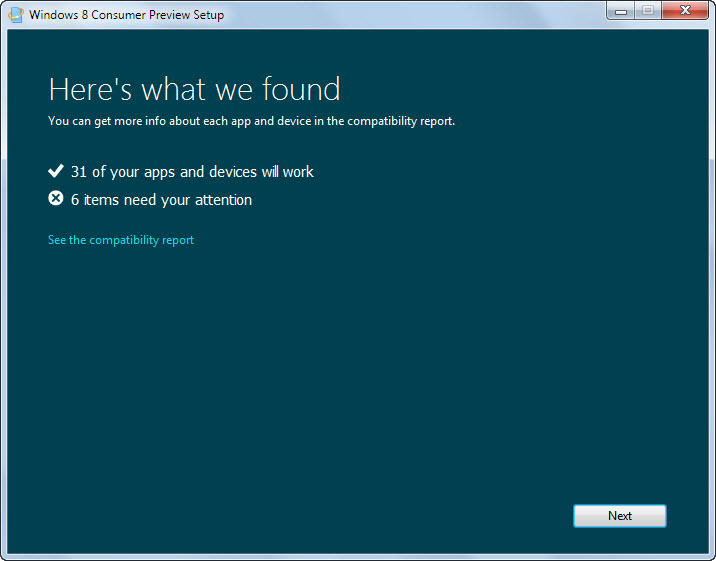
Make sure all hardware drivers are up to date before you begin the installation. If you are running Microsoft Security Essentials, you will need to uninstall it before proceeding with setup. If any of the compatibility steps require a restart, the setup program will resume after you reboot.
To upgrade, you must start setup from your current version of Windows. You'll be offered the option to migrate programs and files, files only, or do a clean install (with your existing Windows installation going to the Windows.old folder).
You also have the option to dual boot, either from a separate partition or from a virtual hard drive (VHD). I'll have more on those options in follow-up posts.
Which languages are supported?
Windows 8 Consumer Preview is available in English, Chinese (Simplified), French, German, and Japanese. Setup program will automatically detect your current language selection and install the matching version if you are using one of the five supported languages. If your current installation uses an unsupported language, you’ll need to choose the language you want to download. Note: If you do an upgrade install using a language that's different from the one currently on your PC, you won't be able to keep programs or settings.
Where do I download the software?
The simplest way to set up Windows 8 Consumer Preview on a single machine is to use the Web installer, which you’ll find here:
Download Windows 8 Consumer Preview
It’s a small stub that downloads the correct version (32-bit or 64-bit) and language for your system.
If you plan to test the Consumer Preview on multiple systems, grab the ISO file here:
Windows 8 Consumer Preview ISO images
ISO images are available in English, Chinese (Simplified), French, German, and Japanese, with 32-bit and 64-bit editions available.
How do I turn the downloaded ISO file into bootable media?
You can burn the ISO disk image to DVD using any burning software, including the Disk Image utility in Windows 7.
To copy the ISO file to a USB flash drive and make it bootable, use Microsoft’s Windows 7 USB/DVD Download Tool. You'll find full instructions, with download links and screenshots, here.
You can run setup directly from that drive or DVD, either from within Windows or by restarting your PC and booting from the external media.
You will need a product key to complete installation. On the next page, I explain how to get that key. I also answer the most common question of all: is it possible to replace the new Start screen with the Windows 7-style Start menu?
Page 2: Can I change the Start screen? -->
<-- Previous page
Where do I get a product key?
If you install Windows 8 Consumer Preview using the Web-based setup program, you won't need to enter a product key—the setup program automatically provides the product key.
If you download an ISO and make your own installation media, you will need to supply a product key. The ISO download page includes this public key:
DNJXJ-7XBW8-2378T-X22TX-BKG7J
The Windows 8 Consumer Preview FAQ has a different key:
NF32V-Q9P3W-7DR7Y-JGWRW-JFCK8
You’ll need to type this code in when prompted.
What about installing Windows in a virtual machine?
I don’t recommend testing Windows 8 in a virtual machine, You’ll get the best results if you run on physical hardware. VMs are most useful if you want to document the setup process or if you want to run an unfamiliar app in a sandbox.
Windows 8 will not run on Windows Virtual PC. It will run on most third-party virtualization platforms, although you should check with the developer of that software first for any needed patches or setup instructions.
Can I upgrade the Windows 8 Developer Preview to the Consumer Preview?
Yes. However, the upgrade will not migrate any installed programs or files.
Which Windows 7 touch hardware will work with Windows 8?
This Windows 8 blog post contains a list of hardware that the Windows development team has used widely, although they caution that the list is not an endorsement. The following text is taken directly from that post:
- HP Elitebook 2760p convertible (Note: This PC is 1280x800 and so does not support snap.)
- ASUS EP121 tablet (Note: this PC is 1280x800 and so does not support snap.)
- Dell Inspiron Duo convertible
- Lenovo x220t convertible
- 3M M2256PW 22” display (Note: The raised bezel can make it harder to swipe along the edges)
- Samsung Series 7 slate (Note: This PC has two models, one was provided to attendees at //build/ and the other is a commercial release; the latter has slightly different peripherals and firmware.)
Where do I get support?
For general questions: Windows 8 Consumer Preview forum.
For IE issues: Internet Explorer 10 Consumer Preview forum.
For questions and issues related to business features: IT pro forums.
Can I uninstall Windows 8 Consumer Preview?
No, if you want to restore your previous operating system, you need to do so from the original installation disks or from a backup you made before the upgrade.
You made that backup, right?
How do I turn off the Metro style Start screen and use the classic Start menu?
You can’t. Although there was a registry hack that worked in the Developer Preview, it is not available in this release. My colleague Mary Jo Foley wrote about a promising Group Policy setting (available via the Local Group Policy Editor, Gpedit.msc). Unfortunately, this option is intended for use with the Windows Server 8 Beta only. In my limited testing so far, it doesn’t work with the Windows 8 Consumer Preview.
Even if it did work as described, the effect would simply be to skip the Start screen and go directly to the Windows desktop at startup—you can do that yourself with a single click. This Group Policy setting doesn’t change the behavior of the Start screen in any other way.
Does the Consumer Preview have an expiration date?
Yes. This release will stop working on January 15, 2013. That should be long after both the release to manufacturing and General Availability dates.
How do I customize the Windows 8 Start screen?
I’ll have step-by-step instructions to help you with the most common tasks in a follow-up post.