I'm switching to a Mac. Here's how (and why)

It's true. I'm switching to a Mac. Of course, I'll be switching back to a PC shortly after, and then switching back to the Mac sometime later, and then back and forth - switching from Mac to PC and vice versa - for the foreseeable future.
For more than a year I’ve been trying to figure out the best way to add some Mac and OS X experience to my portfolio of PC skills. I bought a Mac Mini almost exactly a year ago, trading an older model for the most up-to-date model Apple offered at the time, with a Core 2 Duo processor and discrete Nvidia graphics. I’ve used that machine sporadically over the last year, sometimes for lengthy stretches, other times for brief experiments and simple tasks. I've done several reinstalls, with and without Time Machine backups, and at least one full OS upgrade along the way.
But last week I finally decided to get serious with this experiment. After a few tweaks and some careful cable-swapping, I now have 24-inch monitors lined up side by side, each running at full 1920x1200 resolution and sharing a single keyboard and mouse.
Here's what my desktop looks like. The shared keyboard and mouse are about 21 inches in front of the dual displays and not visible here. (And yes, that is a SpongeBob Squarepants pen holder on the left side of the desk. Eat your heart out.)
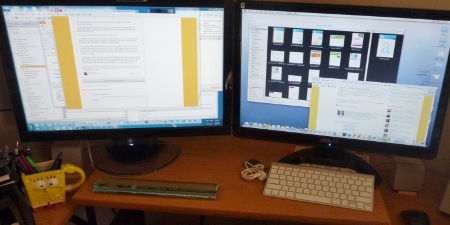
- The display on the left is being driven by an HP Pavilion Elite desktop PC with an i7-920 CPU, 10GB of RAM, and an upgraded Nvidia graphics card. I bought it as a refurb from HP's official outlet site more than 10 months ago for a mere pittance. The PC I received was new, in its original box with a factory warranty. (It cost $659, and I added about $300 worth of after-purchase upgrades). [Note: this paragraph has been updated to reflect the source of the PC.]
- The display on the right is connected to the Mac Mini. This model doesn’t include user-upgradeable memory (and I don’t feel like prying it apart to do the upgrade). I purchased it as a refurb from the Apple Outlet for $744 (it arrived in original box and was indistinguishable from a new machine). I paid another $100 for the Bluetooth keyboard and mouse. It has its stock 2GB of RAM and a 320GB hard drive.
The beauty of this setup is that I’m not “switching” in the way that Apple defines this term. I’m not forswearing one way of doing things for another, not undergoing a religious conversion, not pledging allegiance to a brand identity. I’m not giving up Windows and using a Mac exclusively, or vice versa. Rather, the goal is to be comfortable enough to move between machines and use the best tools on each one with as little friction as possible.
The secret of truly being able to use these systems side by side is a free, open-source program called Synergy, which runs on both the Mac and the PC and allows the use of a single keyboard and mouse without any switching. If I drag the mouse pointer to the far right side of the PC monitor and then keep going, the pointer appears on the Mac, where I can click or double-click any object on the Mac desktop. Dragging the pointer back to the left edge of the Mac display and then beyond moves the pointer back to the PC.
It wasn't especially easy to set up Synergy, but after a few false starts I got things working properly. On the next page, you can see what the Windows Synergy control panel and corresponding Preference Pane on the Mac look like.
Page 2: Getting everything set up just right -->
<-- Previous page
Because I'm using the PC's keyboard and mouse, I have Synergy set to run as a server on the PC. In fact, if all goes well I plan to configure the utility to load as a system service at startup, so I don't need to mess with it at all.
I had trouble with the Stable and Beta versions on the official download page. What finally worked was a 64-bit version of Synergy+ version 1.4.2-r812, which I grabbed from the Latest packages mirror. I had to copy a few DLL files from the folder containing the 32-bit version to get past some error messages.
The Mac version on the official repository is a bare-bones command-line tool. Not fun or easy. Fortunately, using my favorite search engine I tracked down a package called SynergyKM, which bills itself as a "GUI wrapper" around the synergy command-line tool. I'm using version 1.3.1, which connects fine to the PC despite the apparent version mismatch. The SynergyKM client connects to the Windows server with a few simple selections in this custom preference pane.
What Synergy does that is so special is that it allows the keyboard to follow the mouse pointer, so that I can click in a window or text entry box on either the PC or the Mac and start typing. I’m using a wireless keyboard paired with the HP PC because I like its size and feel (and I hate the tiny Apple keyboard, which also has no numeric keypad). It also shares the contents of the Clipboard, which is amazingly useful.
On the Mac, I use DoubleCommand to remap keys so that I don’t get too confused when I switch modes. If I were to use the itsy-bitsy no-keypad Apple keyboard I would look for a similar Windows utility.
The PC is running 64-bit Windows 7 Ultimate with Windows Live Essentials 2011 and Office Professional Plus 2010. The Mac has the latest update to Snow Leopard (10.6.5) with iLife ’11 and Office for Mac 2011. I have Windows Live Mesh running on both machines keeping a couple of local folders in sync. I have Dropbox installed on both machines as well. In addition to the native browsers on each machine, I also have up-to-date copies of Firefox and Google Chrome available, so neither platform is hurting for browsers.
Obviously, even though the PC and Mac cost roughly the same, the PC contains far more powerful components. For some tasks, like transcoding a video file, that makes a performance difference; but my focus is on core business and personal tasks. When moving between platforms takes no more effort than moving a mouse, I have the freedom to switch any time I want.
I vastly prefer this arrangement to the alternatives:
Switching between desktops. Having a second machine in an alternate location doesn’t work. That’s the arrangement I tried with the Mac, and it penalizes the machine in the secondary location, which never has the right lighting, or the right seating, or the right monitor. And it needs its own keyboard and mouse, which takes up desktop space.
Virtualization. I love virtual machines for test scenarios, but they aren’t a fair way to compare Macs and PCs. For starters, using virtualization requires that I use an Apple-branded Mac as the host. Apple won’t allow OS X to run in a VM, so using another host OS and hardware is not an option. Virtualization always penalizes the guest—my PC gets to use my new Nvidia GTX 430 GPU for some tasks, and it doesn’t have to go through virtualized hardware for routine tasks.
Boot Camp. In this scenario, which I have tested extensively, Windows 7 is at the mercy of Apple hardware and drivers, running with a layer of Apple software that must be present before Windows can load. It doesn’t really give the platform a chance to show its strengths. And constantly rebooting for OS switches slows down productivity. It’s fine for tests, but not for work.
Hackintosh? Oh please.
Anyway, I’m happy with this arrangement for now and I’ve probably used the Mac more in the last week than I did in three months before that. And I know I’m more productive.
As a matter of fact, I’m writing this post in Word for Mac 2011, saving it in the Work subfolder (in my Home folder on the Mac), which in turn is synced with my desktop PC via Windows Live Mesh. I’m then opening the saved file in Windows Live Writer on the PC and getting it ready to publish
Coming up next: the hassles of platform switching, and a side by side comparison of the latest Office versions on each platform