Shortcuts and surprises in the Windows 8 Consumer Preview

I’ve had a chance to poke around in the Windows 8 Consumer Preview on multiple PCs for 48 hours now (after spending a week with the beta on a Samsung tablet identical to the one that developers received at Microsoft’s BUILD conference last September).
In that time, I’ve discovered a few useful little shortcuts and surprises. If you’ve installed the Consumer Preview, you might find these tidbits useful:
Fast access to system-management tools
If you aim the mouse pointer in the lower left corner and click, you go straight to the Start screen. But what happens if you move the mouse pointer to the extreme lower left corner and then right-click? Aha! You get this menu, packed with shortcuts that any power user or administrator will appreciate: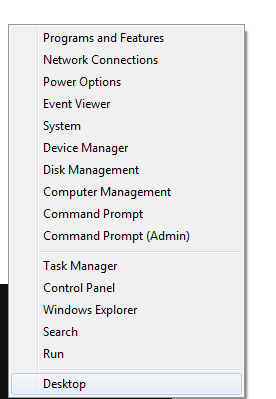
Those are all desktop tools, but this shortcut works from any Metro app, from Start, or from the Windows desktop.
If you don't want to take your hands off the keyboard, use this shortcut: Windows key + X. (That key combination used to be reserved for Windows Mobility Center on notebooks; that feature is still there, but its shortcut has been reassigned.)
Capture a screenshot
For the first time in its long history, Windows has a shortcut that allows you to capture screenshots directly, without requiring extra steps or third-party utilities. In previous editions (including Windows 7), you could press PrtScr to capture the current screen to the Clipboard, but you needed to open an image editor to save the screen. In Windows 8 Consumer Preview, press Windows key + PrtScr. That keyboard shortcut copies the current screen and saves it as a PNG file in the default Pictures folder. Each file has the generic name Screenshot, followed by a sequential number.Save a custom refresh point
This is one of the coolest tricks of all. Windows 8 includes a Refresh option, which you can use to restore your system to an earlier point, without wiping out your data files. By default, the refresh image is the clean install that your PC started with.But you might prefer to roll back to a different state—after you’ve set up your favorite programs and tweaked them to your liking, for example.
To create a custom refresh image, you need to use the Windows 8 command line, specifically the Recimg utility. Using this tool lets you create an image that includes Windows desktop programs and settings as well as all Windows system files in their current state. It doesn’t include Metro style apps or synced settings, which are restored when you log in with a Microsoft account.
To create a custom refresh image, open an administrative Command Prompt window (it’s an option on the power menu when you right-click in the lower left corner), and enter this command:
recimg /createimage directory
where directory is the local folder in which you want to install the image.
On my test system, I created a folder called Recover, in the root of the C: drive. Here’s what the output looked like:
The file it creates is a Windows Installer image. Because the image doesn’t include any data files, it’s relatively small. On a clean installation of Windows 8 Consumer Preview, it occupied less than 7GB.
Enable Windows 8’s backup tool, File History
Since Windows Vista, Windows has had the capability to create regular backups of data files on the fly. This feature was called Previous Versions, but it was barely used because most people don’t know it exists.In Windows 8, the user interface is simpler, and the feature gets a name change. You’ll need a separate drive from your Windows system drive—an external hard drive works great, as does a large enough USB flash drive.
To turn on File History, press Windows key + W and then type File History in the search box. Click or tap the File History shortcut. You can explore the options for yourself (I’ll have more details in the next update to my Windows 8 book). Here’s what it looks like when enabled:
Check the Windows Experience Index
This one surprised me when I first saw it, because Microsoft made no mention of it in the Building Windows 8 blog or in review materials it provided.The maximum rating available for subscores in the Windows Experience Index has been boosted past the 7.9 maximum in Windows 7. Here’s the score I got from one test system; look at the rating for Memory:
If you’ve got a top-of-the-line gaming system, you might see similar high numbers in the CPU and video scores. If you’re seeing higher ratings in Windows 8 than you did in Windows 7, leave a note in the Talkback section.
See also