HP Pavilion dm1-4010ez - Installing Linux Mint 12

When we left our lovely new HP sub-notebook, we had just finished configuring Windows 7 Home Premium. Now it is time to move to installing a real operating system on it, and for the sake of variety the choice this time will be Linux Mint 12 (and Cinnamon 1.1.3). The first thing to do is prepare the disk drive. As I said in the previous post, all four Primary Partitions are used in the default configuration of this system. The disk layout looks like this in GParted:
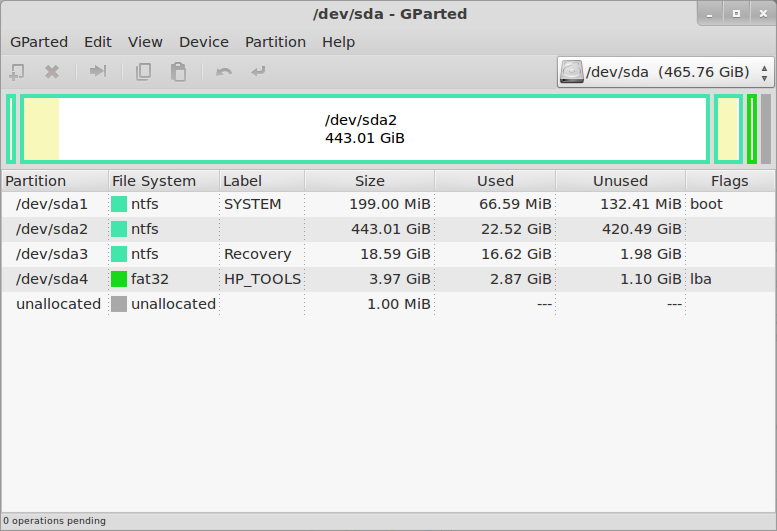
So there is a tiny bootloader partition, a huge Windows C: partition, a small Windows Recovery partition, and a very small HP Tools partition. One of them has got to go, because the antiquated MBR disk labeling/management system can not have more than four partitions. I will say this one more time... Make Sure You Have Created A Set Of Recovery DVDs. Once you delete the Recovery partition, you will never have another chance to create them. The other consequence of deleting the Recovery partition is that you can not do the F11-Recovery procedure, if you ever really need to restore Windows you will have to do it from the DVDs.
Now we are ready to delete a partition. The obvious candidate is the Recovery partition, both because of its size and content (we know we have it copied on DVD). The simplest and most direct thing to do is to delete it in GParted, since we already have that running. But in this case it is probably better to go back to Windows and delete it using the HP Recovery Manager, so that it knows that the partition is gone. Either way you do it, once the partition has been deleted the disk will look like this in GParted:
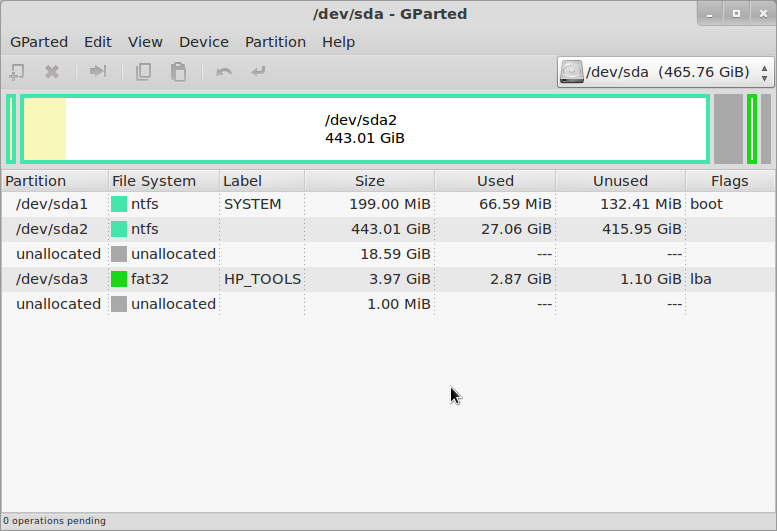
Although it is quite small, that is actually enough free space to load Linux - especially if you are only "sticking your toes in the water" at this point, and want to see how it goes. If you want more space you can just shrink the Windows partition (/dev/sda2). The next step is to create an Extended partition in the free space, and then either create two more logical partitions within that for the Linux root and swap, or just leave the extended partition empty and let the Linux installer create the partitions it wants.
It's finally time to actually install Linux Mint 12. Download the ISO image from the Linux Mint Downloads page. I just about always use the 64-bit images now, but of course you can still use 32-bit if you want or need to, or if you are just extremely conservative. The ISO image can be converted to a bootable USB stick using the "Startup Disk Creator" utility on any running Mint 9/10/11 system, or of course it can be burned to a DVD-R (sorry, too big for CD-R). Insert the USB stick or connect the USB DVD drive, turn on power and press F9 (the boot device selection key for HP systems). When booting from USB stick, it still stops with an error about the vesamenu not being a COM32R image, and then says "boot: ". Sigh. I wish this didn't happen, because it confuses an awful lot of inexperienced users. All you have to do is type "live" and press return, but figuring that out can be daunting. I haven't tried burning a DVD for Mint in a long time, does this still happen when booting that way as well?
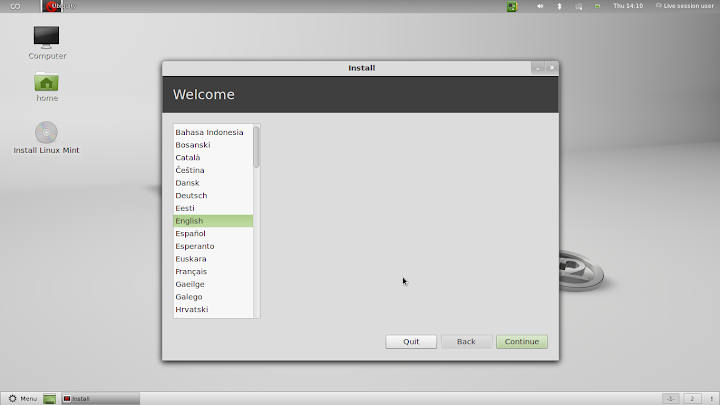
The Mint Live system then comes up, and you will be presented with a normal Mint 12 desktop. One of the icons on that desktop is "Install Linux Mint", which gets you to the Mint installer (duh). The first installer screen asks for the language, which will be used for this installation dialog and as the default for the installed system.
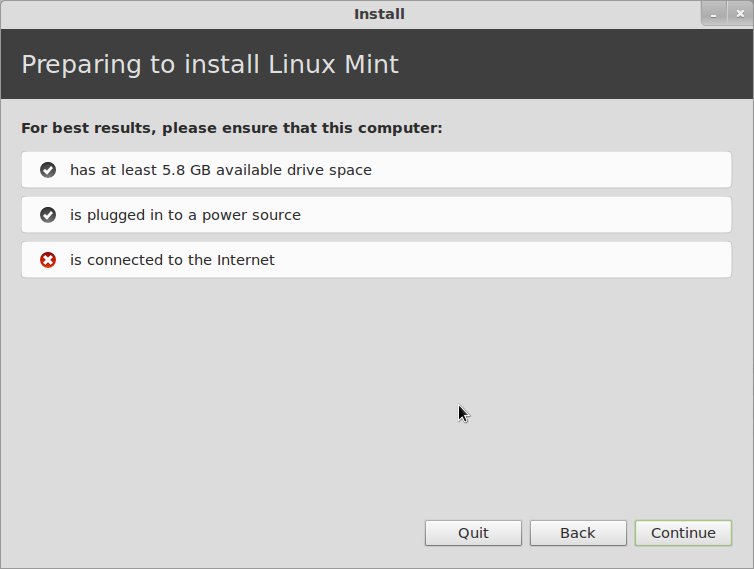
The next screen informs you of the status of disk space, power and Internet connection. You can do the installation just fine without an internet connection, but you really should have power connected, or at least be sure that the battery is full when you start. It's not much fun to have the system die halfway through the installation.
Next you get a chance to connect to a wireless network. This is useful if you want to install updates or additional packages during installation, but as I said it is not absolutely necessary, and I seldom bother with it.
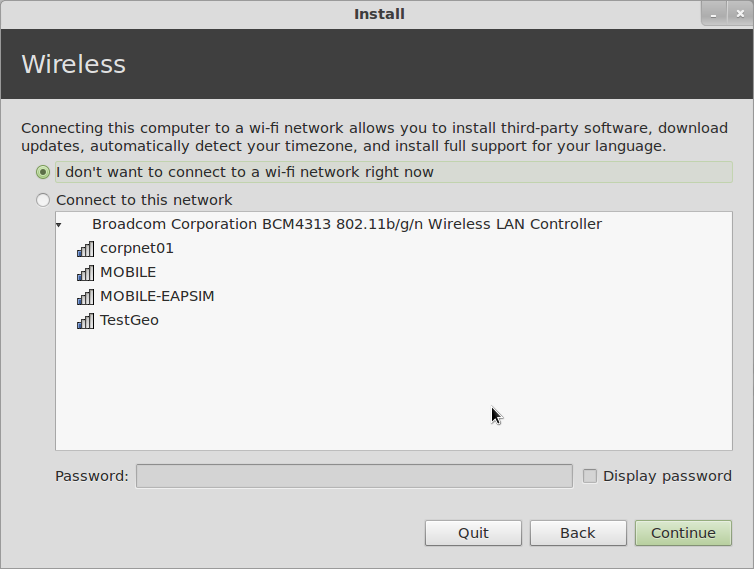
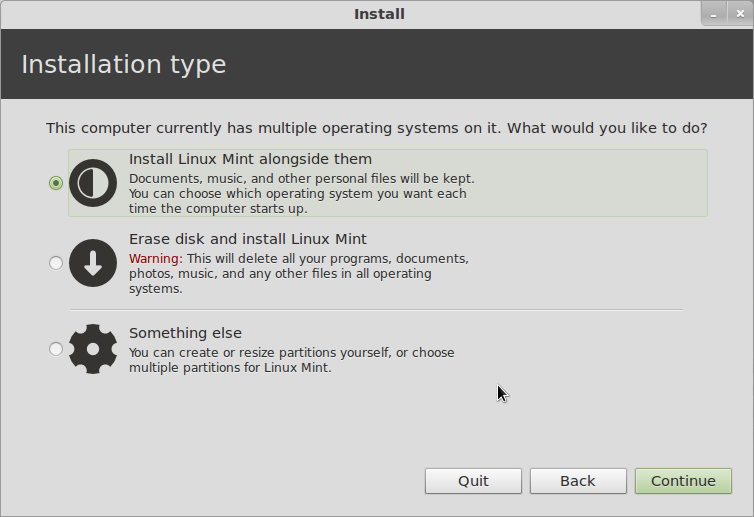
Now comes "Installation Type", which is where you define the disk allocation. If you just created an Extended Partition and left it empty, you can leave this on "Install Linux Mint Alongside Them" and it will do what is necessary. If you like to control things, you can choose "Something Else", which is what I typically do. If you want to ditch Windows and have only Linux installed, choose "Erase disk...".
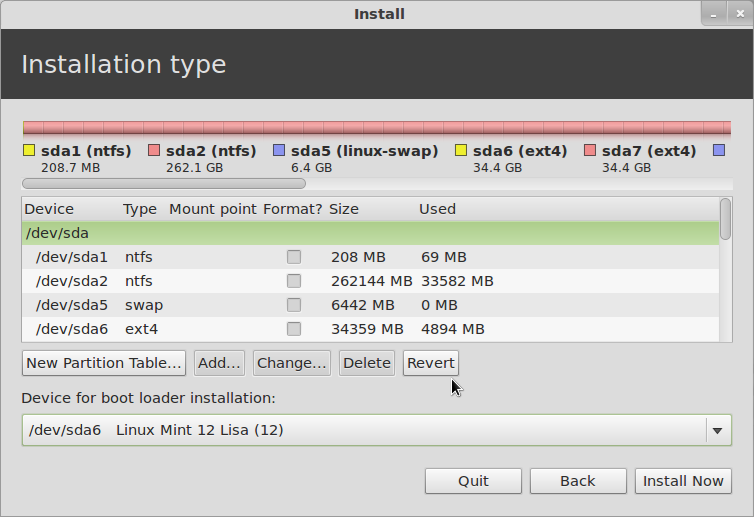
Next you can decide if you want to use the Windows bootloader or Linux GRUB. At the bottom of the window, if you leave the Device for bootloader installation on its default (which is the MBR of the hard drive), you will get Linux GRUB for a bootloader, with Windows listed as a boot option. If you change this to put the bootloader in the root partition of the installed system, you will still have the Windows bootloader, and you will have to follow the instructions I posted a while back to configure that to multi-boot Linux as well.
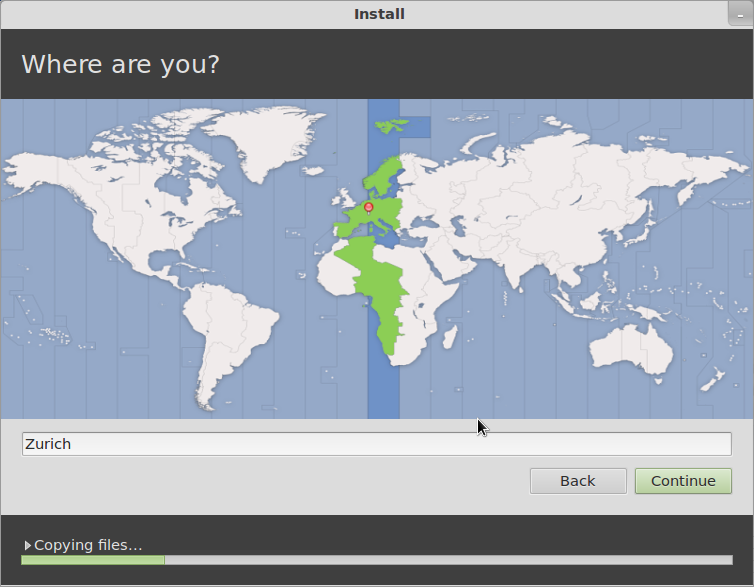
At this point the installer will actually split off and start doing the installation in the background while it continues to ask you a few more questions about the configuration. First is your time zone:
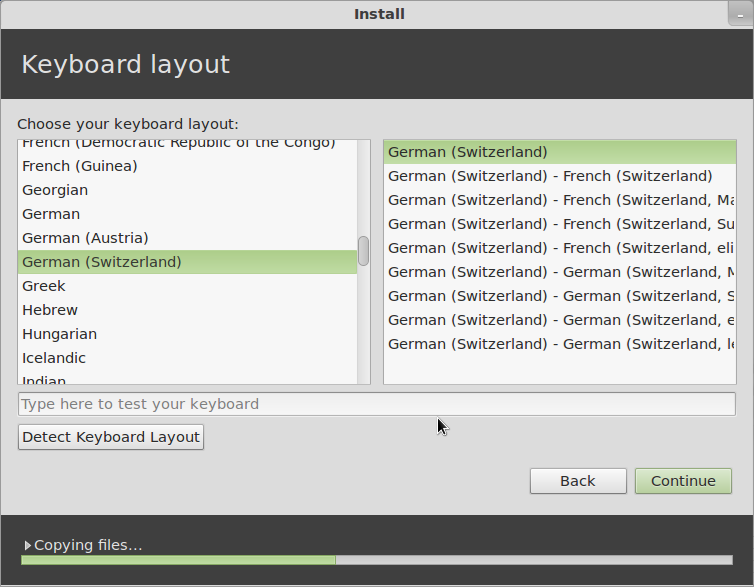
Then comes the keyboard layout...
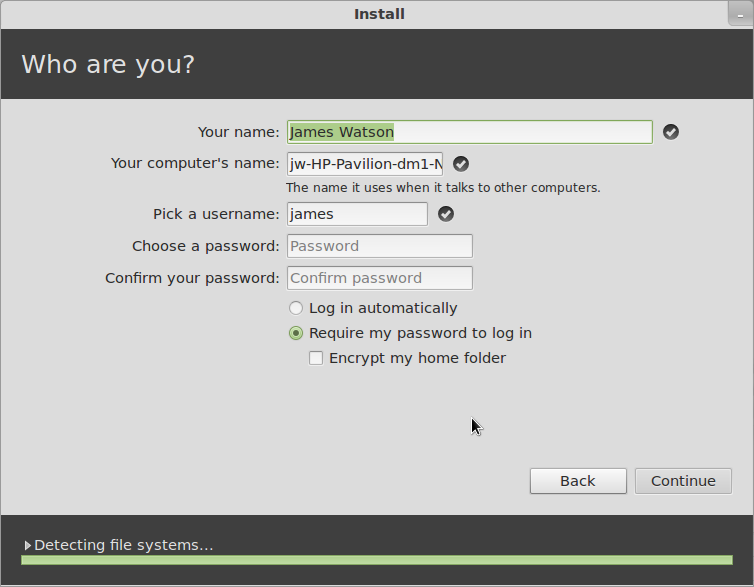
Then comes a series of screens for the the user information.
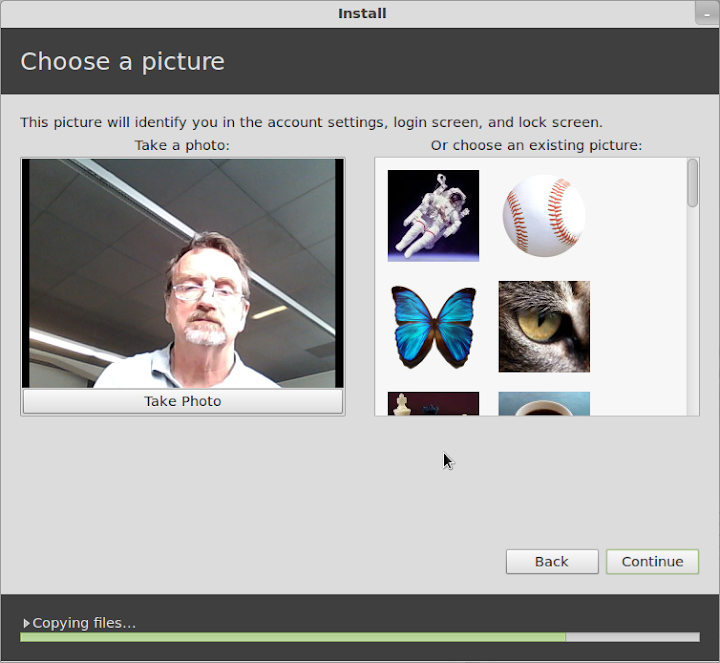
You get to choose a picture for your account - if there is anyone here who really feels that whatever random picture might be taken by the webcam while you are installing is something you might like to have on your account permanently... well, congratulations, you are doing better than I am...
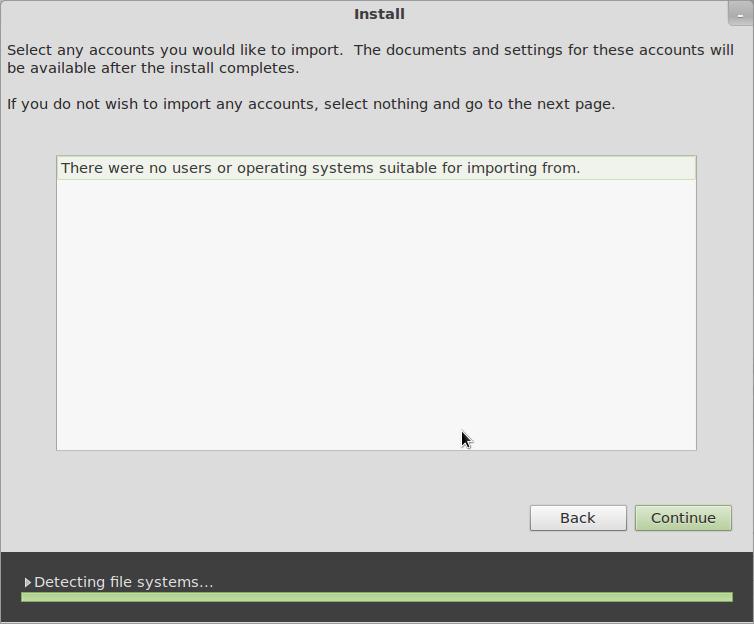
If there is anything else already on the disk that the Installer recognizes and might take over user account information from, it comes up in the next screen.
Once you have gotten this far, you will get some entertaining propaganda screens while the installation finishes. Hooray! When the installation finishes, reboot (and configure the Windows bootloader if you need to), and you'll be up and running Linux Mint 12.
That might seem like quite a long process, but each of those steps only takes a short time, and the entire installation can be done in 30 minutes if you are reading everything very carefully and thinking about the answers, or as little as 15 minutes or less once you are familiar with it and you're doing it on "autopilot".
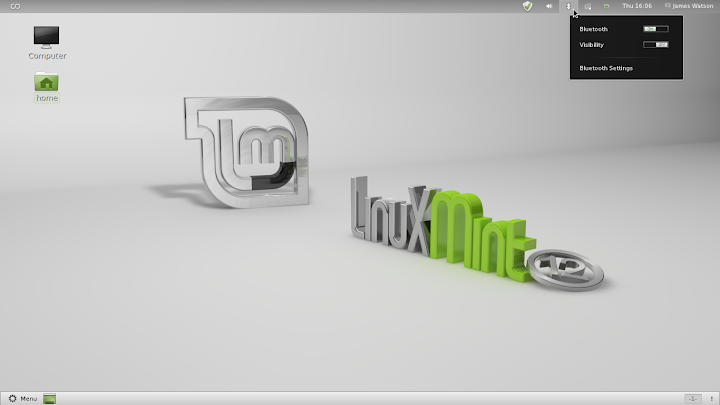
Now comes the good news - it works! As far as I can tell, with one small exception, everything works very nicely. Screen resolution is correct (1366x768), wired and wireless networking are ok (although the signal strength looks weak, as it did under Windows), the touchpad works just fine (SO much better for my nerves than the ClickPad), the Fn-keys for brightness, audio and WiFi control, Suspend/Resume (and it does each of those in less than 5 seconds), Mobile Broadband with my Huawei USB dongle... the only thing I have noticed which doesn't work is Bluetooth. This is a bit of an inconvenience for me, because I sometimes use a bluetooth mouse or printer, but it is certainly not a big deal. By the way, in addition to showing the default Mint 12 desktop, I'll include the simplest way to tell if Bluetooth is working. It seems to me that the Bluetooth icon used to not show up in the panel if Bluetooth wasn't actually available, but now it looks like it is always there - perhaps this is something new with Gnome 3, I haven't really cared enough to look into it yet. But if Bluetooth is actually available and working, when you click on the Bluetooth icon you will get options for "Send files to device..." and "Set up new device...". If you don't see those, as in the screen below, then Bluetooth is not available, so don't waste a lot of time tearing your hair out trying to figure out how to add a Bluetooth device, as I did, when Bluetooth isn't working at all. I expect this problem to be taken care of by an update in the near future.
So, there you have it. I hope all of the detail was worthwhile - I'm certainly not going to be doing this on a regular basis, but I really wanted to show that installing Linux, whether it be openSuSE, Mint, or any of the other popular distributions, was not black magic, and really wasn't even all that difficult or dangerous. What we have ended up with here is a very nice sub-notebook, it looks good, feels good, works well, and when we turn it on we can choose whether to run Linux Mint 12 (loud cheers in the background) or Windows 7 Home Premium (boos and hisses, and I am ducking lemons and rotten tomatoes being thrown from the cheap seats).
Next on the agenda: add the Cinnamon desktop, and compare it to Gnome and MGSE.
jw 5/1/2012